
shopify
How to Install on Shopify: What You Need to Know
Learn what NavonaAI needs during installation, why you need to enable the theme app embed, and what data the app can and can't access.
 ChatGPT
 Perplexity
 Gemini
 Claude
You installed the app, set up your offer, and checked your store. No popup. Nothing is broken. In most cases, one switch in Shopify's theme editor is still off.
This guide walks through what installing NavonaAI involves, what data it can access, and what it doesn't need.
Three steps to get NavonaAI running
Installing NavonaAI works like any other Shopify app. There's no separate account, no code to paste in, and no developer needed.
- Install NavonaAI from the Shopify App Store. You approve the permissions NavonaAI requests on Shopify's own approval screen. Nothing is requested silently, and any additional permissions would require another approval.
- Set up your offer in the NavonaAI dashboard. You can choose the discount, set eligibility rules, and exclude specific products or collections. Nothing is shown to shoppers until your offer is set up.
- Turn on the storefront embed. This step happens in Shopify's theme editor, not on the app installation screen. If you skip it, NavonaAI can be installed and configured, but nothing will appear on your storefront.
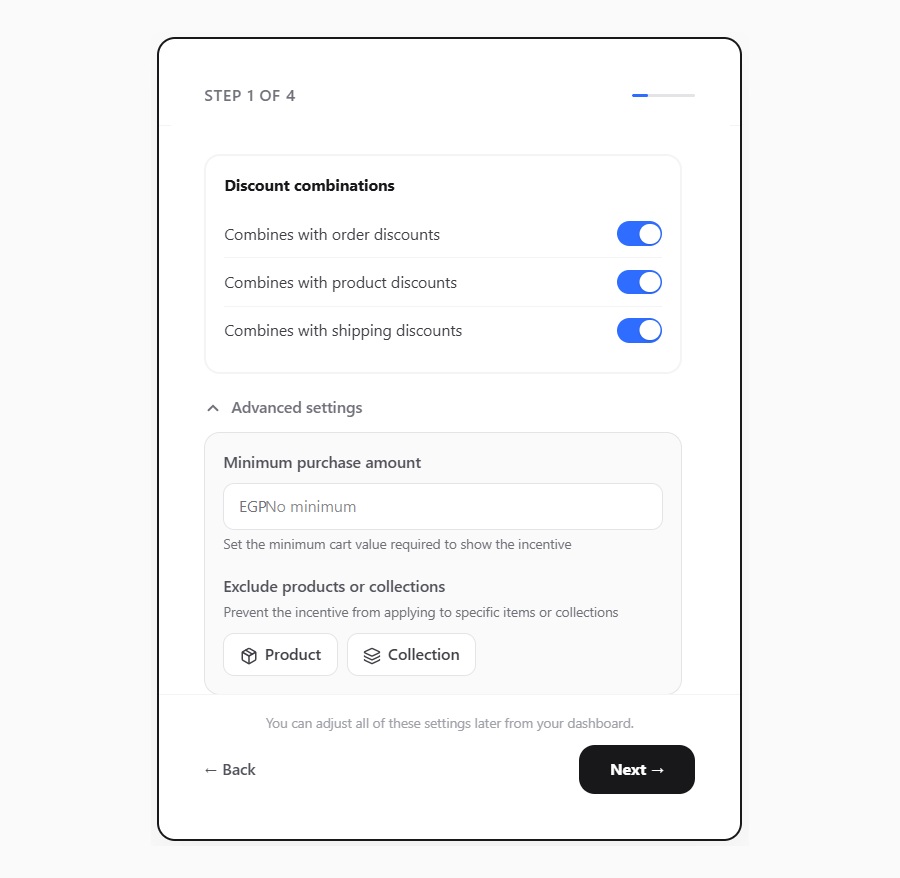
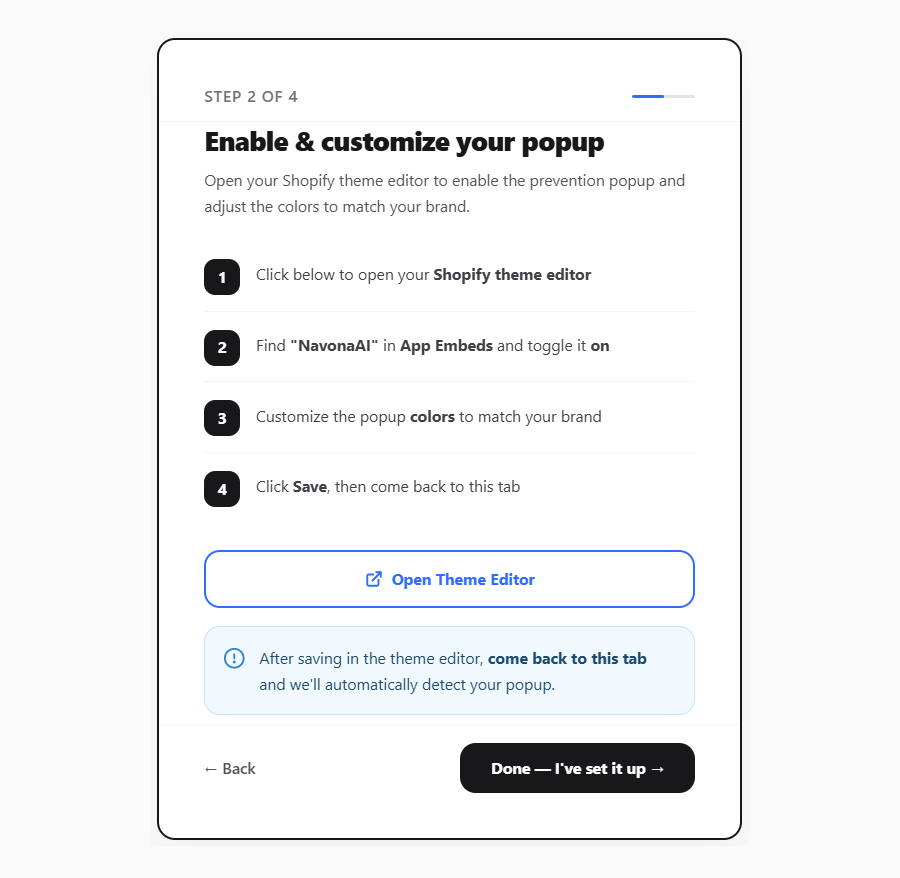
For the full step-by-step process, see the installation guide.
The step that's easy to miss: the theme app embed
NavonaAI uses a Shopify theme app embed to add its storefront functionality without changing your theme's code.
Shopify keeps app embeds turned off until you enable them, so installing the app alone isn't enough.
To turn it on:
- Go to Online Store → Themes → Customize in your Shopify admin.
- Open App embeds in the left panel.
- Switch NavonaAI on.
- Save your changes.
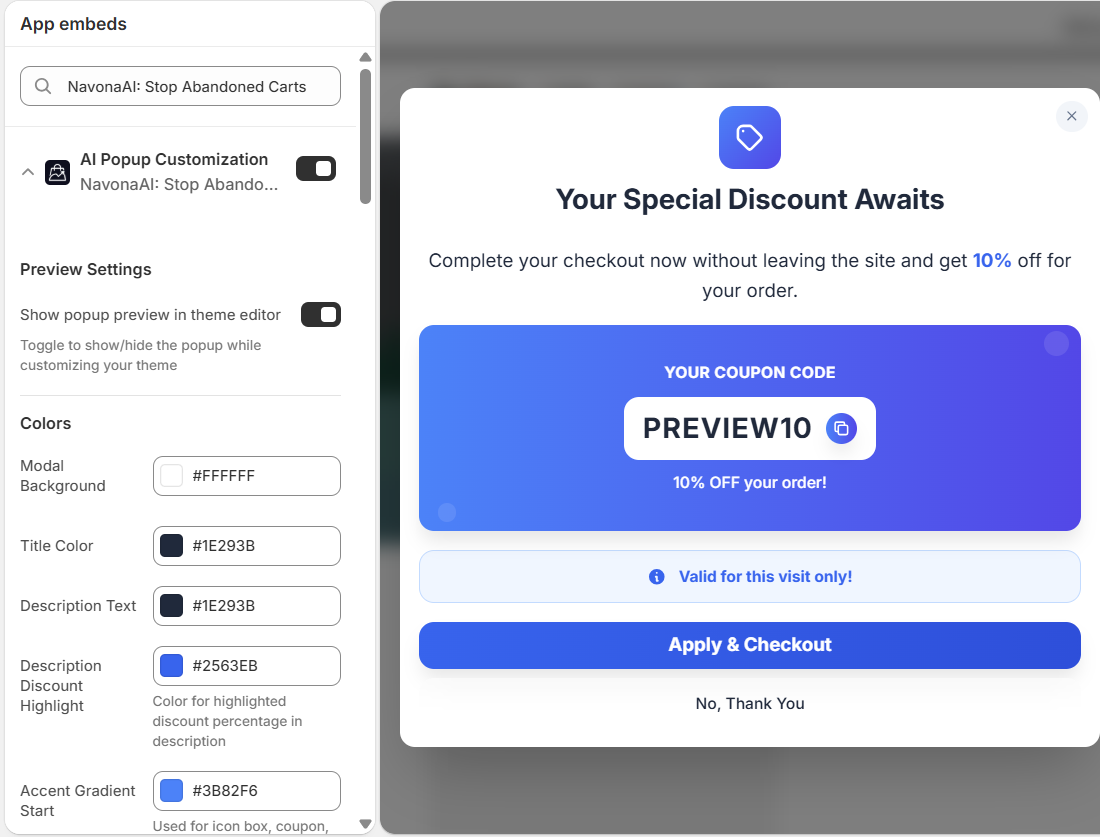
Once the embed is enabled, NavonaAI can run on your storefront.
This step is easy to miss, so the NavonaAI dashboard checks whether the embed is enabled. If it isn't, you'll see a banner with a link that takes you directly to the theme editor.
What NavonaAI reads, and why
NavonaAI accesses the information it needs to show the right offer and measure what happens after it appears.
- What a shopper is doing right now. Cart, checkout, and on-site behavior help NavonaAI understand what's in the cart when an offer may appear.
- Your product and collection catalog. This allows NavonaAI to apply the eligibility and exclusion rules you set. Products or collections you exclude won't receive the discount.
- Orders after they're placed. This helps NavonaAI confirm when a discount was used and attribute the resulting order to the intervention in your dashboard.
- Your theme, locales, and markets. This helps NavonaAI check that the storefront embed is enabled, display the offer in the appropriate language, and use the correct market settings.
NavonaAI doesn't need to change your theme's design or edit your theme files to do this.
What about the discount code?
NavonaAI creates and deactivates the Shopify discount code used for each offer. It's a standard Shopify discount code, subject to the rules and limits you configure.
NavonaAI doesn't decide on a discount amount on its own. You choose the discount and the conditions it should follow in the dashboard.
For the full permission-by-permission breakdown, see our security page.
What NavonaAI doesn't need
NavonaAI is designed to work without access to several types of information you might expect an app to request.
- A shopper's email address or phone number. The offer works without asking shoppers for contact details. There is no email or phone field in the popup.
- Your customer list. NavonaAI doesn't request the Shopify permissions needed to browse your customer records. It works with the information associated with carts, checkouts, and orders instead.
- Payment details. Payment happens through Shopify's checkout. NavonaAI doesn't handle the payment process or see a shopper's card number.
- Changes to your theme files. NavonaAI uses a theme app embed, which you can turn on or off from Shopify's theme editor. It doesn't require you to edit or paste code into your theme.
Ready to set up NavonaAI?
Install NavonaAI from the Shopify App Store, configure your offer, and make sure the theme app embed is enabled. Once those steps are complete, NavonaAI can start preventing cart abandonment on your storefront.
Related reading
- Shopify Discount Stacking: How Your Discounts Combine
- Exclude Products From Your Cart Abandonment Discount
- How a Cart Abandonment Model Knows When a Shopper Is Leaving